Playwright MCP server guide
Overview
The official Playwright MCP server provides browser automation capabilities using Playwright. This server enables AI agents to interact with web pages through structured accessibility snapshots, bypassing the need for screenshots or visually-tuned models.
Key features include:
- Fast and lightweight: Uses Playwright's accessibility tree instead of pixel-based input
- LLM-friendly: Operates purely on structured data without requiring vision models
- Deterministic tool application: Avoids ambiguity common with screenshot-based approaches
- Multi-browser support: Works with Chrome, Firefox, Safari (WebKit), and Edge
- Tab management: Create, switch between, and manage multiple browser tabs
- Persistent sessions: Maintains login state and browser data between interactions
Metadata
Expand to view the MCP server's metadata
Name: io.github.stacklok/playwright
Type: container
Description: Provides browser automation capabilities using Playwright
Tier: Official
Status: Active
Transport: stdio
Image: mcr.microsoft.com/playwright/mcp:v0.0.76
Has Provenance: No

Permissions:
  Network:
    Insecure Allow All: true
    Allow Port: 443
Repository URL: https://github.com/microsoft/playwright-mcp
Popularity: 28552 stars
Last Updated: 2026-06-26T21:53:13Z

Tools:
  - browser_click
  - browser_close
  - browser_console_messages
  - browser_drag
  - browser_drop
  - browser_evaluate
  - browser_file_upload
  - browser_fill_form
  - browser_handle_dialog
  - browser_hover
  - browser_navigate
  - browser_navigate_back
  - browser_network_request
  - browser_network_requests
  - browser_press_key
  - browser_resize
  - browser_run_code_unsafe
  - browser_select_option
  - browser_snapshot
  - browser_tabs
  - browser_take_screenshot
  - browser_type
  - browser_wait_for

Environment Variables:
  - PLAYWRIGHT_MCP_ALLOWED_HOSTS: Comma-separated list of hosts this server is allowed to serve from. Defaults to the host the server is bound to. Pass '*' to disable the host check.
  - PLAYWRIGHT_MCP_ALLOWED_ORIGINS: Semicolon-separated list of trusted origins to allow the browser to request. Default is to allow all.
  - PLAYWRIGHT_MCP_ALLOW_UNRESTRICTED_FILE_ACCESS: Allow access to files outside of the workspace roots, including unrestricted access to file:// URLs.
  - PLAYWRIGHT_MCP_BLOCKED_ORIGINS: Semicolon-separated list of origins to block the browser from requesting. Evaluated before the allowlist.
  - PLAYWRIGHT_MCP_BLOCK_SERVICE_WORKERS: Block service workers.
  - PLAYWRIGHT_MCP_BROWSER: Browser or chrome channel to use. Possible values: chrome, firefox, webkit, msedge.
  - PLAYWRIGHT_MCP_CAPS: Comma-separated list of additional capabilities to enable. Possible values: vision, pdf, devtools.
  - PLAYWRIGHT_MCP_CDP_ENDPOINT: CDP endpoint to connect to.
  - PLAYWRIGHT_MCP_CDP_HEADER: CDP headers to send with the connect request. Multiple can be specified.
  - PLAYWRIGHT_MCP_CDP_TIMEOUT: Timeout in milliseconds for connecting to the CDP endpoint. Defaults to 30000.
  - PLAYWRIGHT_MCP_CODEGEN: Language to use for code generation. Possible values: typescript, none. Defaults to typescript.
  - PLAYWRIGHT_MCP_CONFIG: Path to the configuration file.
  - PLAYWRIGHT_MCP_CONSOLE_LEVEL: Level of console messages to return: error, warning, info, debug. Each level includes messages of more severe levels.
  - PLAYWRIGHT_MCP_DEVICE: Device to emulate, for example 'iPhone 15'.
  - PLAYWRIGHT_MCP_ENDPOINT: Bound browser endpoint to connect to.
  - PLAYWRIGHT_MCP_EXECUTABLE_PATH: Path to the browser executable.
  - PLAYWRIGHT_MCP_EXTENSION: Connect to a running browser instance (Edge/Chrome only). Requires the Playwright Extension to be installed.
  - PLAYWRIGHT_MCP_GRANT_PERMISSIONS: List of permissions to grant to the browser context, for example 'geolocation', 'clipboard-read', 'clipboard-write'.
  - PLAYWRIGHT_MCP_HEADLESS: Run browser in headless mode. Headed by default.
  - PLAYWRIGHT_MCP_HOST: Host to bind the server to. Use 0.0.0.0 to bind to all interfaces. Defaults to localhost.
  - PLAYWRIGHT_MCP_IGNORE_HTTPS_ERRORS: Ignore HTTPS errors.
  - PLAYWRIGHT_MCP_IMAGE_RESPONSES: Whether to send image responses to the client. Possible values: allow, omit. Defaults to allow.
  - PLAYWRIGHT_MCP_INIT_PAGE: Path to a TypeScript file to evaluate on the Playwright page object.
  - PLAYWRIGHT_MCP_INIT_SCRIPT: Path to a JavaScript file to add as an initialization script. Evaluated on every page before any of the page's scripts. Can be specified multiple times.
  - PLAYWRIGHT_MCP_ISOLATED: Keep the browser profile in memory; do not save it to disk.
  - PLAYWRIGHT_MCP_NO_SANDBOX: Disable the sandbox for all process types that are normally sandboxed.
  - PLAYWRIGHT_MCP_OUTPUT_DIR: Path to the directory for output files.
  - PLAYWRIGHT_MCP_OUTPUT_MODE: Whether to save snapshots, console messages, and network logs to a file or to standard output. Possible values: file, stdout. Defaults to stdout.
  - PLAYWRIGHT_MCP_PORT: Port to listen on for SSE transport.
  - PLAYWRIGHT_MCP_PROXY_BYPASS: Comma-separated domains to bypass the proxy, for example '.com,chromium.org,.domain.com'.
  - PLAYWRIGHT_MCP_PROXY_SERVER: Proxy server, for example 'http://myproxy:3128' or 'socks5://myproxy:8080'.
  - PLAYWRIGHT_MCP_SANDBOX: Enable the sandbox for all process types that are normally not sandboxed.
  - PLAYWRIGHT_MCP_SAVE_SESSION: Whether to save the Playwright MCP session into the output directory.
  - PLAYWRIGHT_MCP_SECRETS_FILE: Path to a file containing secrets in the dotenv format.
  - PLAYWRIGHT_MCP_SHARED_BROWSER_CONTEXT: Reuse the same browser context between all connected HTTP clients.
  - PLAYWRIGHT_MCP_SNAPSHOT_MODE: Mode to use when taking snapshots for responses. Possible values: full, none. Defaults to full.
  - PLAYWRIGHT_MCP_STORAGE_STATE: Path to the storage state file for isolated sessions.
  - PLAYWRIGHT_MCP_TEST_ID_ATTRIBUTE: Attribute to use for test ids. Defaults to data-testid.
  - PLAYWRIGHT_MCP_TIMEOUT_ACTION: Action timeout in milliseconds. Defaults to 5000.
  - PLAYWRIGHT_MCP_TIMEOUT_NAVIGATION: Navigation timeout in milliseconds. Defaults to 60000.
  - PLAYWRIGHT_MCP_USER_AGENT: User agent string.
  - PLAYWRIGHT_MCP_USER_DATA_DIR: Path to the user data directory. If not specified, a temporary directory will be created.
  - PLAYWRIGHT_MCP_VIEWPORT_SIZE: Browser viewport size in pixels, for example '1280x720'.

Tags:
  playwright, automation, browser, navigate, testing, web, accessibility

Example Command:
  thv run playwright
Usage
The Playwright MCP server supports numerous options to customize its behavior,
each available as both a command-line argument and an equivalent
PLAYWRIGHT_MCP_* environment variable. Common options include:
- Custom viewport: Set
--viewport-sizeorPLAYWRIGHT_MCP_VIEWPORT_SIZEto specify browser dimensions (e.g.,1920x1080) - Device emulation: Use
--deviceorPLAYWRIGHT_MCP_DEVICEto emulate mobile devices (e.g.,"iPhone 15") - Session persistence: Set
--user-data-dirorPLAYWRIGHT_MCP_USER_DATA_DIRto a mounted volume to keep login state and cookies across container restarts; use--isolatedorPLAYWRIGHT_MCP_ISOLATEDto run fresh, throwaway sessions instead - Output directory: Specify
--output-dirorPLAYWRIGHT_MCP_OUTPUT_DIRto save screenshots, PDFs, and other files to a custom location; mount a host directory for persistence (see examples below) - Timeouts: Increase
--timeout-actionorPLAYWRIGHT_MCP_TIMEOUT_ACTIONand--timeout-navigationorPLAYWRIGHT_MCP_TIMEOUT_NAVIGATIONfor slow-loading pages - Image responses: Set
--image-responsesorPLAYWRIGHT_MCP_IMAGE_RESPONSEStoomitto stop sending screenshots to the client and reduce context usage - HTTPS errors: Use
--ignore-https-errorsorPLAYWRIGHT_MCP_IGNORE_HTTPS_ERRORSwhen testing internal sites with self-signed certificates
The environment variable form is generally easier to use with ToolHive's -e
flag (CLI) or env field (Kubernetes), so the examples below use it, but you
can pass the equivalent command-line arguments instead if you prefer. Refer to
the
Playwright MCP server documentation
for the full list of configuration options and their environment variable
equivalents.
The containerized version of Playwright only supports the Chromium browser in headless mode.
- UI
- CLI
- Kubernetes
Select the playwright MCP server in the ToolHive registry. The server runs
with default settings that work for most use cases.
To customize the server's behavior, configure the available options in the
Environment Variables section (for example, PLAYWRIGHT_MCP_DEVICE or
PLAYWRIGHT_MCP_OUTPUT_DIR). You can add command-line arguments in the
Command arguments section instead if you prefer.
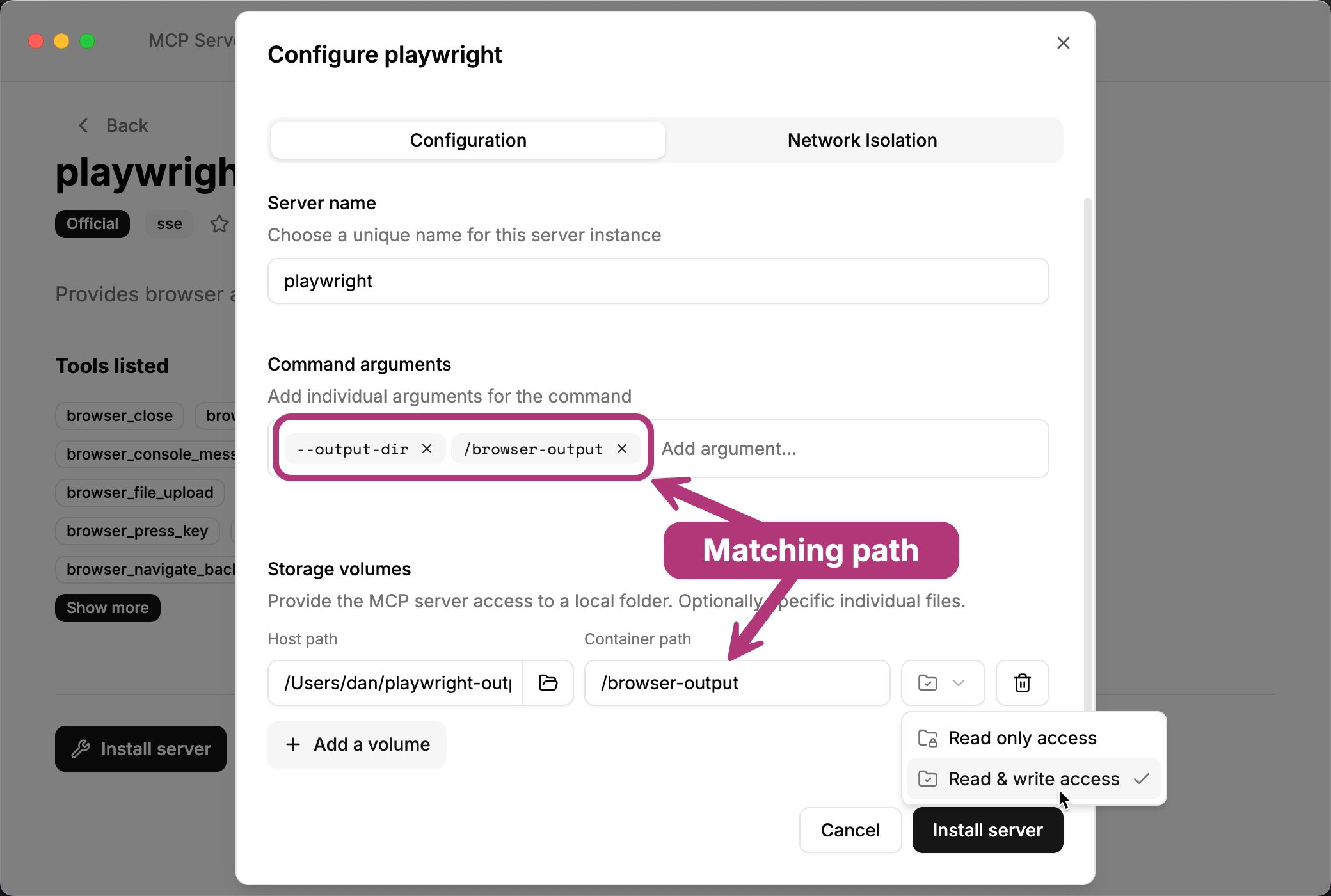
To save browser output files like screenshots and traces, mount a host directory
in the Storage volumes section and set the PLAYWRIGHT_MCP_OUTPUT_DIR
environment variable (or the --output-dir command argument, as shown in the
screenshot below) to the matching container path.
Run with the default configuration using Chromium in headless mode:
thv run playwright
Emulate a mobile device for responsive testing:
thv run -e PLAYWRIGHT_MCP_DEVICE="iPhone 15" playwright
Mount a host directory to persist login state and cookies across container restarts:
mkdir ~/playwright-profile
thv run \
  --volume ~/playwright-profile:/profile \
  -e PLAYWRIGHT_MCP_USER_DATA_DIR=/profile \
  playwright
Mount a host directory (e.g., ~/playwright-output) to save browser output
files like screenshots and traces:
mkdir ~/playwright-output
thv run \
  --volume ~/playwright-output:/browser-output \
  -e PLAYWRIGHT_MCP_OUTPUT_DIR=/browser-output \
  -e PLAYWRIGHT_MCP_SAVE_SESSION=true \
  playwright
You can run multiple instances of the server with different configurations by giving each a unique name:
thv run --name playwright-desktop \
  -e PLAYWRIGHT_MCP_DEVICE="Desktop Chrome" \
  -e PLAYWRIGHT_MCP_VIEWPORT_SIZE=1920x1080 \
  playwright

thv run --name playwright-iphone -e PLAYWRIGHT_MCP_DEVICE="iPhone 15" playwright
Create a basic Kubernetes manifest to deploy the Playwright MCP server using the Streamable HTTP transport:
apiVersion: toolhive.stacklok.dev/v1beta1
kind: MCPServer
metadata:
  name: playwright
  namespace: toolhive-system
spec:
  image: mcr.microsoft.com/playwright/mcp:v0.0.77
  transport: streamable-http
  mcpPort: 8931
  proxyPort: 8080
  env:
    - name: PLAYWRIGHT_MCP_PORT
      value: '8931'
    - name: PLAYWRIGHT_MCP_HOST
      value: '0.0.0.0'
    - name: PLAYWRIGHT_MCP_ALLOWED_HOSTS
      value: '*'
Don't remove the PLAYWRIGHT_MCP_PORT, PLAYWRIGHT_MCP_HOST, or
PLAYWRIGHT_MCP_ALLOWED_HOSTS environment variables. They're required to run
the server using Streamable HTTP.
Apply the manifest to your Kubernetes cluster:
kubectl apply -f playwright.yaml
Mount a persistent volume to save browser output files like screenshots and traces:
apiVersion: toolhive.stacklok.dev/v1beta1
kind: MCPServer
metadata:
  name: playwright
  namespace: toolhive-system
spec:
  image: mcr.microsoft.com/playwright/mcp:v0.0.77
  transport: streamable-http
  mcpPort: 8931
  proxyPort: 8080
  env:
    - name: PLAYWRIGHT_MCP_PORT
      value: '8931'
    - name: PLAYWRIGHT_MCP_HOST
      value: '0.0.0.0'
    - name: PLAYWRIGHT_MCP_ALLOWED_HOSTS
      value: '*'
    - name: PLAYWRIGHT_MCP_OUTPUT_DIR
      value: '/browser-output'
    - name: PLAYWRIGHT_MCP_SAVE_SESSION
      value: 'true'
  podTemplateSpec:
    spec:
      volumes:
        - name: playwright-output
          persistentVolumeClaim:
            claimName: playwright-output-claim
      containers:
        - name: mcp
          volumeMounts:
            - mountPath: /browser-output
              name: playwright-output
              readOnly: false
To serve multiple concurrent users, scale out the backend and configure Redis session storage so each user's requests consistently reach the same pod. Playwright's default browser profile persists in that pod's own filesystem, so login state and cookies stick around for the life of the pod without needing a mounted volume:
apiVersion: toolhive.stacklok.dev/v1beta1
kind: MCPServer
metadata:
  name: playwright
  namespace: toolhive-system
spec:
  image: mcr.microsoft.com/playwright/mcp:v0.0.77
  transport: streamable-http
  mcpPort: 8931
  proxyPort: 8080
  env:
    - name: PLAYWRIGHT_MCP_PORT
      value: '8931'
    - name: PLAYWRIGHT_MCP_HOST
      value: '0.0.0.0'
    - name: PLAYWRIGHT_MCP_ALLOWED_HOSTS
      value: '*'
  backendReplicas: 3
  sessionStorage:
    provider: redis
    address: redis.toolhive-system.svc.cluster.local:6379
    db: 0
    keyPrefix: playwright-sessions
    passwordRef:
      name: redis-password
      key: password
Sessions aren't migrated between pods, so if a backend pod restarts, its in-progress sessions (and any login state in its profile) are lost and clients must reconnect. See Horizontal scaling and Redis session storage for the full setup, including deploying Redis.
Sample prompts
Here are some sample prompts you can use to interact with the Playwright MCP server:
- "Navigate to https://toolhive.dev and take a screenshot of the homepage"
- "Go to the login page, fill in the username field with 'testuser' and password field with 'password123', then click the login button"
- "Open https://news.ycombinator.com and get the titles of the top 5 stories"
- "Navigate to a form on https://httpbin.org/forms/post, fill it out with sample data, and submit it"
- "Go to https://github.com/microsoft/playwright and check if there are any console errors on the page"
- "Take a full-page screenshot of https://example.com and save it as 'homepage.png'"
- "Navigate to an e-commerce site, search for 'laptop', and capture information about the first product"
- "Open multiple tabs, navigate to different websites in each, and then switch between them"
Recommended practices
- Use accessibility-first interactions: The server works best when you describe elements by their accessible names, labels, or text content rather than visual characteristics.
- Leverage browser profiles: For workflows requiring authentication, use persistent profiles or storage state files to maintain login sessions.
- Monitor resource usage: Browser automation can be resource-intensive; consider using headless mode and limiting concurrent sessions.
- Handle dynamic content: Use the
browser_wait_fortool when dealing with content that loads asynchronously. - Organize output files: Specify a custom output directory to keep screenshots, PDFs, and traces organized.
- Test responsively: Use device emulation to test how web applications behave on different screen sizes and devices.